
Mailpit for Local Email Testing: Fast, Safe Email Notification Simulation

Why Mailpit is Useful for Simulating Email Notifications in Local Development
When building features like:
- account registration
- password reset
- OTP / verification code
- invoice emails
- system alerts / notifications
you usually need to test email sending many times during development.
The problem is: if your app is connected to a real SMTP service (like Gmail, SendGrid, or SMTP from hosting), you can accidentally send test emails to real users or clutter real inboxes with fake notifications.
That’s where Mailpit becomes very useful.
Mailpit is a lightweight email and SMTP testing tool for developers. It acts as a local SMTP server, captures outgoing emails, and lets you inspect them in a web UI instead of sending them to real recipients. It also provides an API for automation/integration testing.
What Mailpit does (in simple terms)
Think of Mailpit as a fake local mailbox for your app.
Your application sends email notifications as usual, but instead of going to the internet, they are intercepted by Mailpit locally. You can then open Mailpit in your browser and see:
- email subject
- sender / recipient
- HTML content
- plain text content
- headers
- raw source
- attachments (including image thumbnails)
Mailpit’s docs describe it as an SMTP server + web UI for viewing and testing intercepted emails, with API support for automated testing.
Why Mailpit is useful for local email notification simulation
1) Prevents accidental emails to real users
This is the biggest benefit.
Mailpit serves as a local SMTP server so you can configure your app to send emails to Mailpit instead of a real mail server, allowing you to view emails without sending them to real addresses.
This is especially important when testing:
- password reset flow
- welcome emails
- bulk notifications
- reminders / scheduled jobs
2) Faster debugging loop
Mailpit captures emails in real time, and the UI updates live when new messages arrive. That means you can trigger a feature in your app and immediately check the result in the browser.
This speeds up debugging for:
- wrong template variables
- broken links
- missing attachments
- incorrect recipients
- formatting issues
3) Easy to inspect HTML, text, and headers
For email notifications, the UI is not enough — you often need to inspect the actual email structure.
Mailpit supports viewing formatted HTML, highlighted HTML source, text content, headers, raw source, and MIME attachments in the web UI.
This helps when debugging:
- email client rendering issues
- MIME multipart problems
- header issues (
Reply-To,List-Unsubscribe, etc.) - attachment encoding problems
4) Great for testing notification quality
Mailpit includes extra tooling beyond just “catching emails,” such as:
- HTML compatibility checking
- link checking
- spam checking
- screenshot generation
- advanced search / filtering
These features are listed in the official docs and are very useful when your notification emails become more production-like.
5) Useful for automated testing (not just manual checking)
Mailpit also provides a REST API and integration testing support, so your tests can verify whether an email was generated and inspect message content programmatically. The docs also describe ways to return rendered HTML/text message parts and even test SMTP failure handling using the Chaos feature.
This is useful for:
- E2E tests
- integration tests
- CI pipelines
- testing retry/error handling for email jobs
6) Easy to run locally (Docker or binary)
Mailpit is easy to set up. It can run as a single binary or as a Docker container. The official installation docs list package-manager installs (including Homebrew on macOS), script install for Linux/Mac, static binaries, and Docker options.
That makes it convenient for different developer environments:
- local machine
- Docker Compose stack
- team dev containers
- staging (with proper auth/security)
Default ports (very important when configuring your app)
Mailpit uses these defaults:
- Web UI / API:
8025 - SMTP:
1025
The docs state Mailpit listens on port 8025 for the web UI/API and 1025 for SMTP by default.
So a typical local setup looks like:
- App sends email via SMTP →
localhost:1025 - You open browser →
http://localhost:8025
Quick local setup example (Docker)
Mailpit’s Docker docs show a simple container setup exposing both ports.
docker run -d \
--restart unless-stopped \
--name=mailpit \
-p 8025:8025 \
-p 1025:1025 \
axllent/mailpit
Then open:
http://localhost:8025→ Mailpit UI
Example app SMTP config (generic)
Point your local app mail settings to Mailpit:
MAIL_HOST=127.0.0.1
MAIL_PORT=1025
MAIL_USERNAME=
MAIL_PASSWORD=
MAIL_ENCRYPTION=
Mailpit’s SMTP server defaults to no encryption/authentication on port 1025 (configurable if needed), which makes local testing simple.
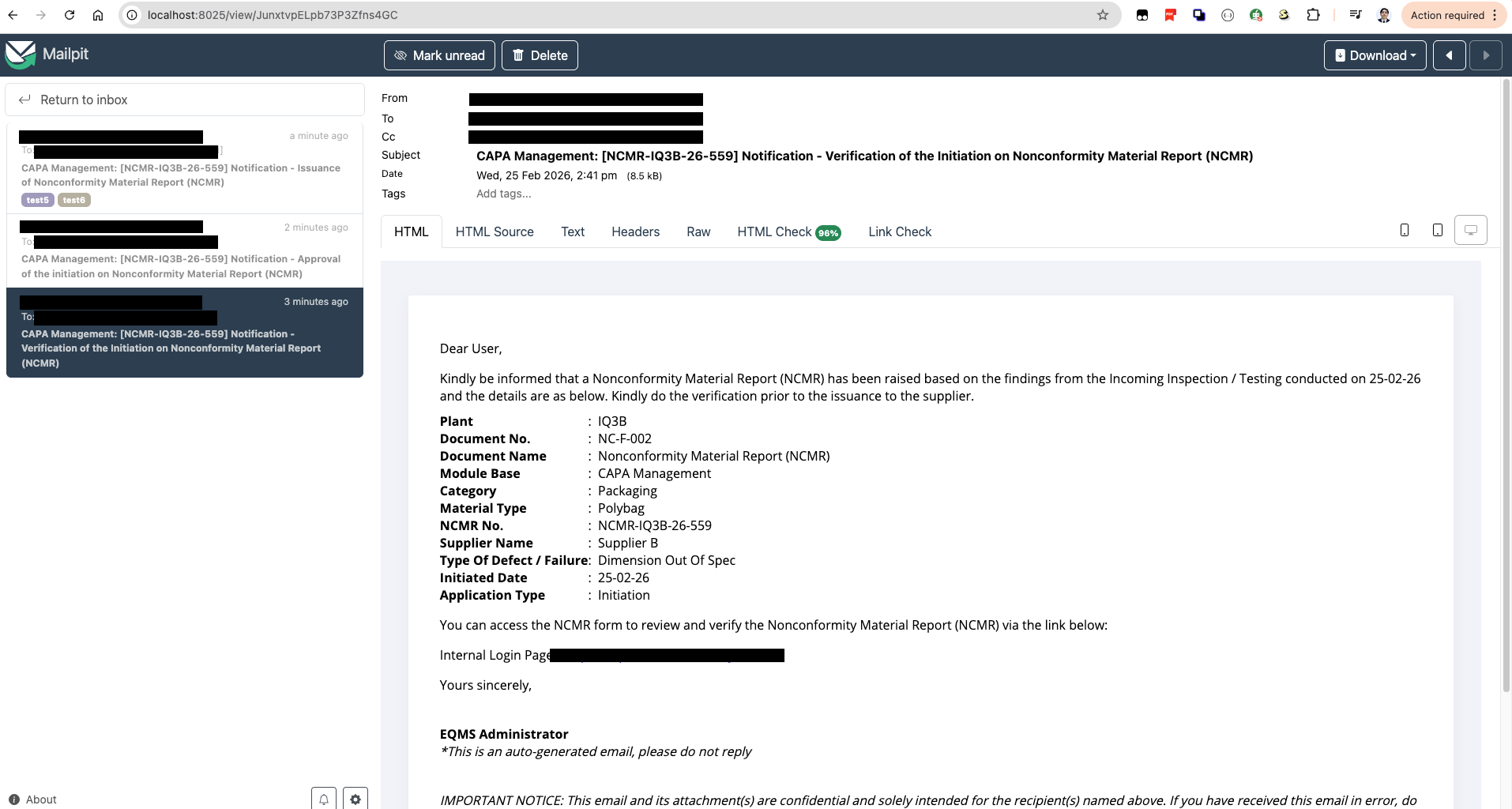
Sample email tested with Mailpit
The email shown here is from one of my production projects at Kossan: NCMR.
Bonus: When Mailpit becomes even more valuable
Mailpit is especially useful once your app has multiple email notifications, such as:
- user signup verification
- password reset
- OTP / login alerts
- order confirmation
- invoice / receipt
- support ticket updates
- scheduled reminder jobs
- system failure alerts
Instead of guessing whether emails are being generated correctly, you can see the exact output instantly and validate behavior safely in local development.
Final thoughts
If your app sends any email notifications, Mailpit gives you a safer and faster development workflow:
- no accidental real sends
- instant visibility of emails
- better debugging of HTML/text/headers
- API support for testing automation
- easy local setup with Docker or binary
For local email notification simulation, it’s one of the most practical tools you can add to your development setup.