Voice cloning for presentations: sound like yourself, not a robot
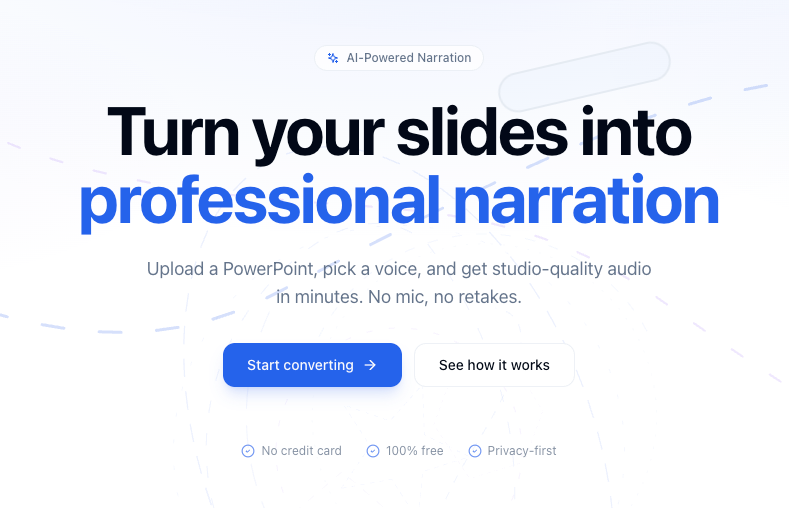
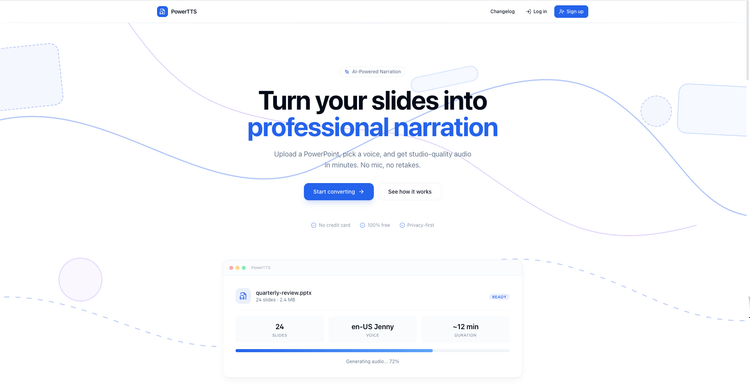
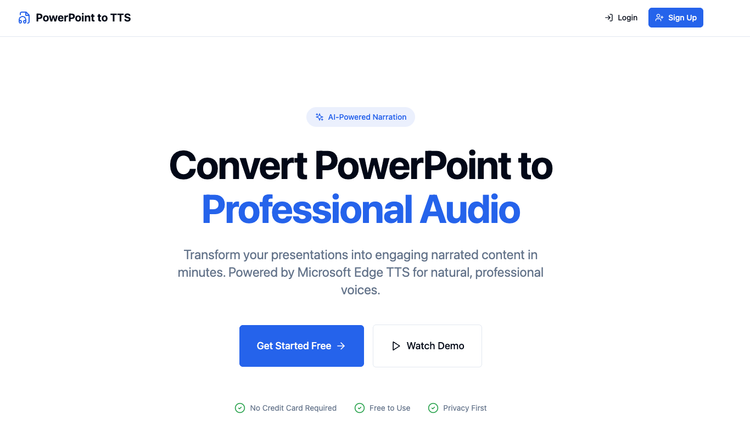
Voice cloning turns a short sample of your speech into a reusable narrator for slides and training decks. Here’s how it works, what to watch for, and how to get great results with tools like Pocket TTS and PowerTTS.
https://powertts.baidelaire.com
Why voice cloning matters for slide narration
Most text-to-speech systems use preset voices. They’re clear and consistent, but they rarely match your brand, your classroom presence, or your team’s internal tone. Voice cloning (sometimes called voice conversion or speaker adaptation in a TTS stack) starts from your own reference audio so generated speech can follow your timbre and cadence—within the limits of the model—instead of a generic “narrator voice.”
For PowerPoint-to-audio workflows, that means: upload a deck, pick your cloned voice, and get narration that feels closer to you recording it—without re-recording every time a slide changes.
What “voice clone” means in practice
In products like PowerTTS, a clone is usually:
- A reference clip you upload (e.g. WAV, MP3, M4A, OGG)—clean speech you have the right to use.
- A saved profile the system labels (e.g. “Demo narrator”) and stores as something like
clone:<id>. - A TTS backend (here, Pocket TTS) that conditions generation on that profile so new text sounds like that speaker—not like a totally unrelated preset.
You’re not “uploading unlimited audio of someone else”; you’re building a controlled, consent-based voice asset for your deployments.
How to create a strong clone (short checklist)
Audio quality
- Prefer quiet room, close mic, minimal reverb.
- One speaker only; no overlapping voices or loud music.
- A few minutes of varied sentences beats one monotone line—but follow whatever your product’s docs recommend for minimum length.
Content & consent
- Use only audio you own or have permission to clone (yourself, contracted talent, corporate policy).
- Avoid cloning public figures or colleagues without explicit agreement; it’s an ethics and often a legal issue, not just a technical one.
After upload
- Preview with a phrase that matches real use (“In Q3 we saw…” not only “Hello world”) so you hear prosody on content like your slides.
- If something sounds thin or robotic, try a clearer sample or slightly longer reference before chasing model settings.
Using a clone in your deck workflow
Once a clone exists:
- In project settings, choose the engine that supports clones (Pocket TTS in this stack) and select your saved voice (
clone:<id>). - Generate per slide or full deck, then regenerate single slides when copy changes—no full studio session for one bullet tweak.
That’s the operational win: iteration speed with a recognizable voice.
Limitations to set expectations
No clone is magic:
- It’s not indistinguishable from a studio recording of the same person on every sentence; plosives, emotion, and edge cases still challenge models.
- Self-hosted setups may need extra steps (e.g. accepting gated model terms and authenticating with the model hub) before cloning weights download—presets might work while clones are still being configured.
- Language and accent generally follow the reference; don’t expect flawless cross-language unless the product explicitly supports it.
Transparency with stakeholders (“AI-assisted, clone-based narration”) builds trust.
Closing: clone as a product asset
Treat a voice clone like branded media: versioned, labeled, and removable when campaigns end. Pair clones with preset voices where a neutral read is better, and use preview + regenerate loops until slide text and audio feel aligned.
If you’re using PowerTTS, the Voice clone studio flow—upload, label, preview, then select Pocket TTS + your clone on a project—is the shortest path from “generic TTS” to “sounds like our voice” for narrated slides.